Make a Great Walks booking
Check Park alerts for the latest information about our parks and forests that may affect your permit booking.
Before you use this trip planner to book your Great Walk or multi-day hike, visit multi-day hikes and Great Walks for all the information needed to plan your hike and decide which hike-in camping areas to book.
Note: Great Walks bookings can only be booked separately and cannot be processed with other bookings.
1. Visit qld.gov.au/camping to create an itinerary and make your booking(s). All Great Walks are displayed on the Great Walks landing page.
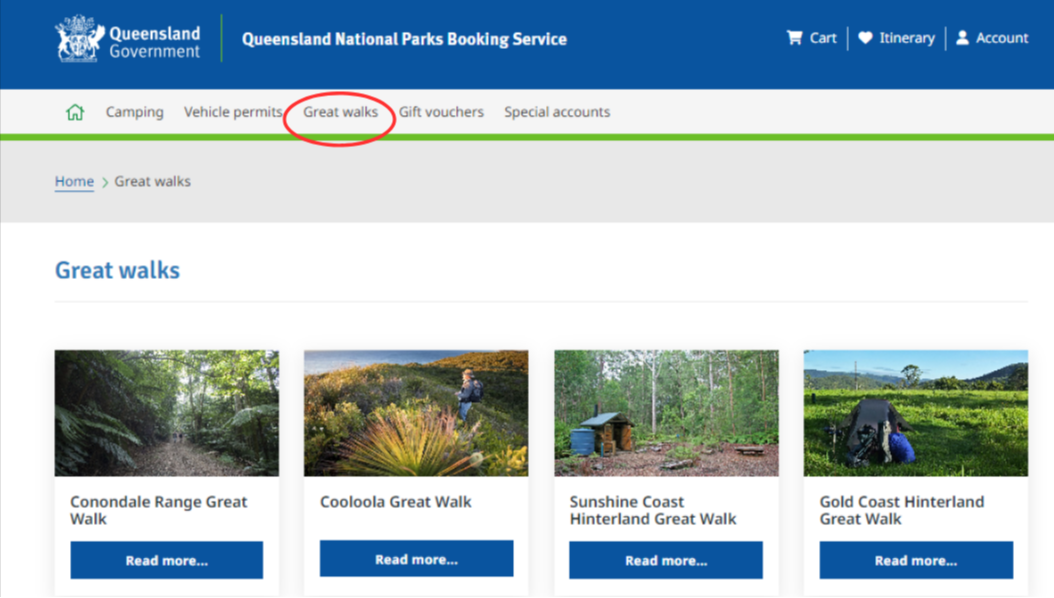
2. On the desired Great Walk, click ‘read more’.

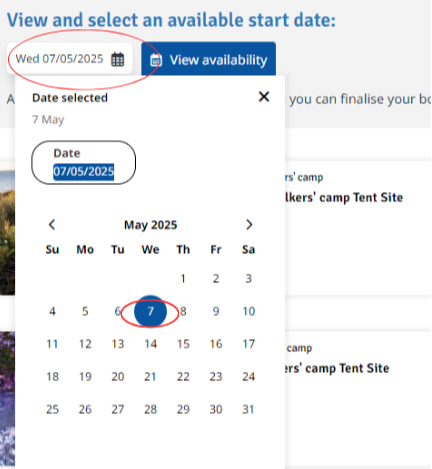
3. Scroll down to ‘view and select an available start date’ and select preferred start date using the calendar and click ‘view availability’.

4. Check the availability of the camping areas you want to book.
Note: use the key to determine availability: number in blue box = number of campsites available; X in grey box = unavailable for reservation; tick in blue box = your selected journey; X in red box = selected but unavailable.
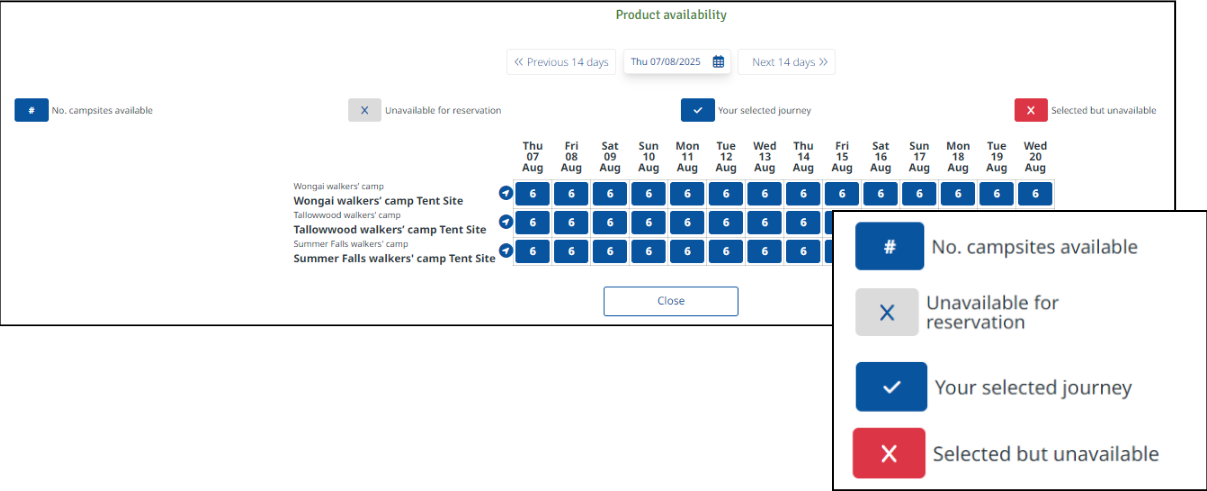
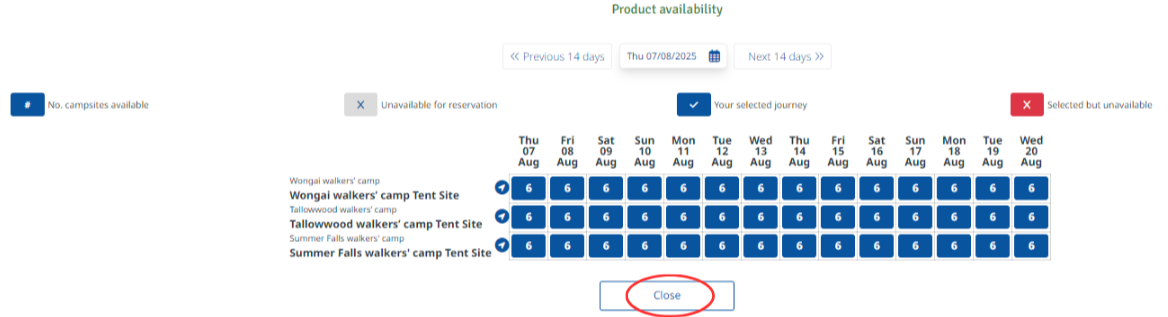
5. After viewing availability, click ‘close’.
Note: you can view availability at any time when building your itinerary.
6. Once availability is confirmed, select date for night 1 of your booking in the ‘view and select an available start date’ section.
7. Choose your Great Walk campsite for night 1 and select total number of guests camping in the ‘guests’ field. Increase or decrease number of adults, children and infants by using the – and + symbols. Click ‘apply’.
Note: Great Walk camping areas can only be booked for one night, some allow a second one-night-stop (for example, if wanting to do a return walk and not one-way).
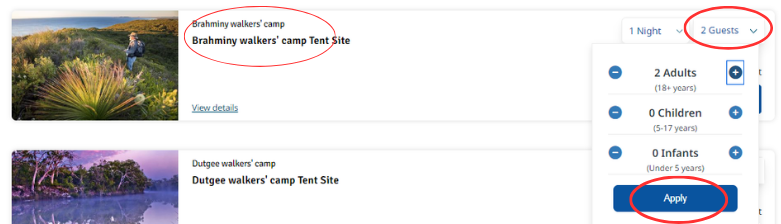
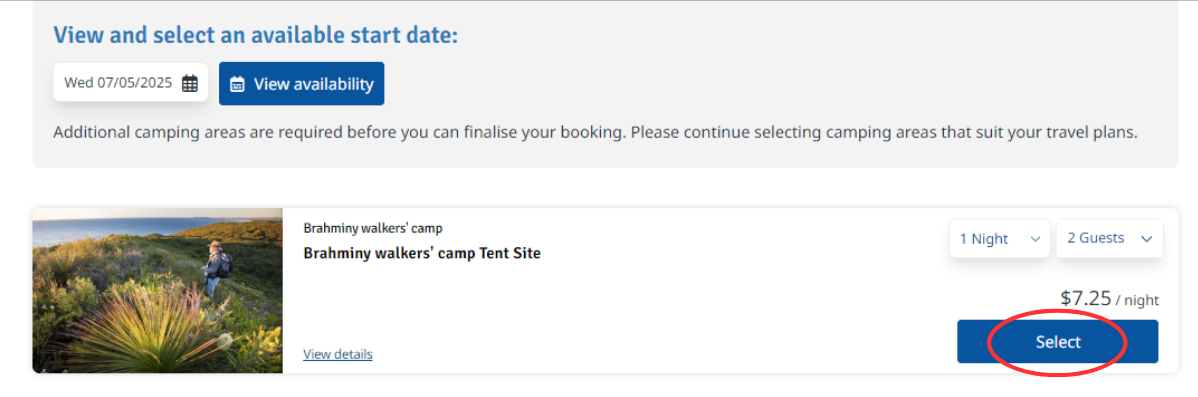
8. Click ‘select’.
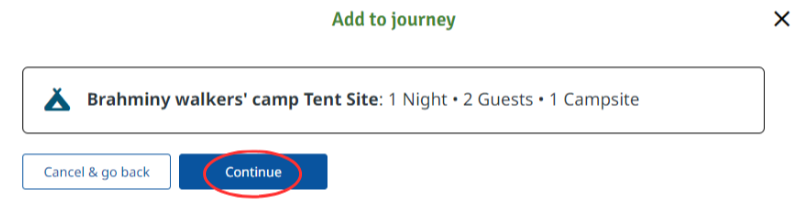
9. To add to your itinerary, click ‘continue’.
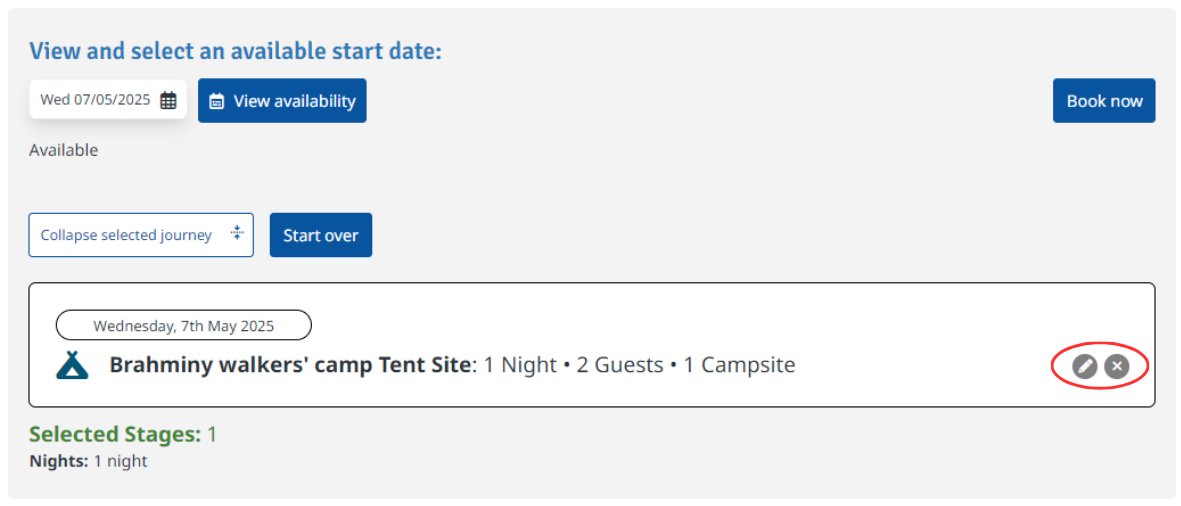
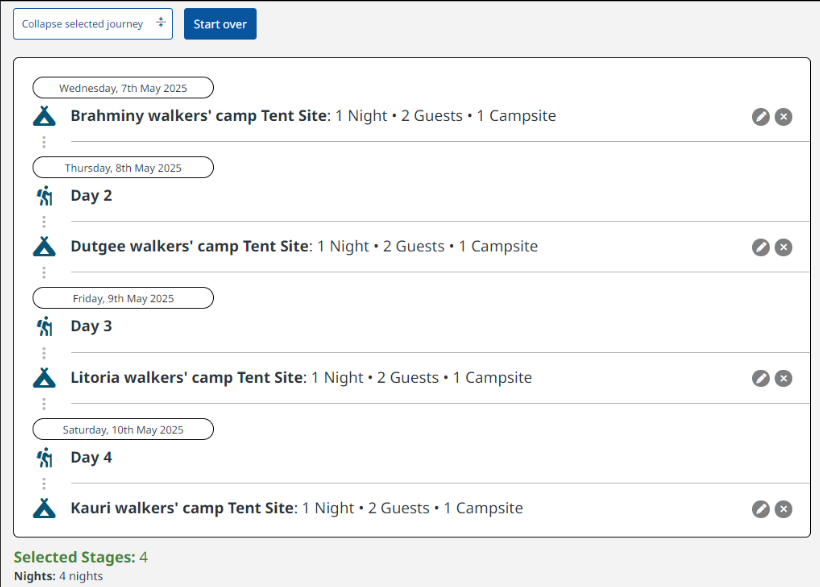
10. The selected camping area has now been added to your itinerary.
Note: you can edit each camping area by clicking on the ‘pencil’ symbol to edit or ‘X’ to remove at any stage of building your itinerary.
11. Choose the next camping area you want to book, the number of guests should already reflect the same number of guests as your day 1 campsite selection. Repeat steps 8 to 10.
Note: to prevent booking the same camping area twice by mistake, please check that the camping area selected is the one required.
12. You will see your itinerary being created as you repeat steps 8 to 10.
13. After adding all the camping areas required to your itinerary, click ‘book now’.
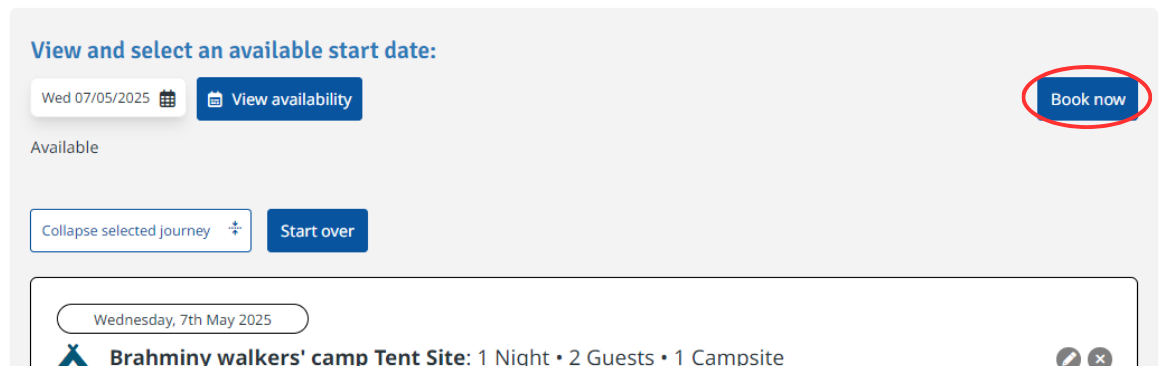
Note: you will be prompted to login to your account, if you aren’t already signed in. Click ‘login’ and enter your email address (username) and password. Click ‘sign in’.
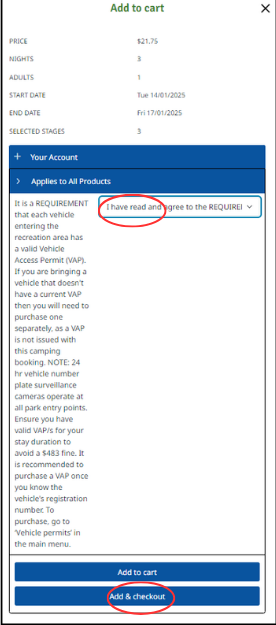
14. When signed into your account, click ‘add & checkout’.
Note: If booking a camping area within K’gari, Cooloola or Bribie Island recreation areas, a pop up message will appear reminding you of the requirement to have a valid Vehicle Access Permit (VAP) for each vehicle entering the recreation area. To proceed, click in the vacant text box and select ‘I have read and agree to the requirement’ from the drop down. You will need to purchase a VAP in a separate transaction, once your camping booking has been finalised and paid for. See Purchase a vehicle access permit for more information.
15. A 15min timer to complete your details will start.
Your Great Walk booking will be displayed in the left column, check all booking details are correct. As you are logged into your account, the fields under ‘my details’ will have been pre-filled. Check all contact details are correct and update if necessary.
Note: correct contact details are very important so you can be contacted in case of an emergency or unexpected closures.
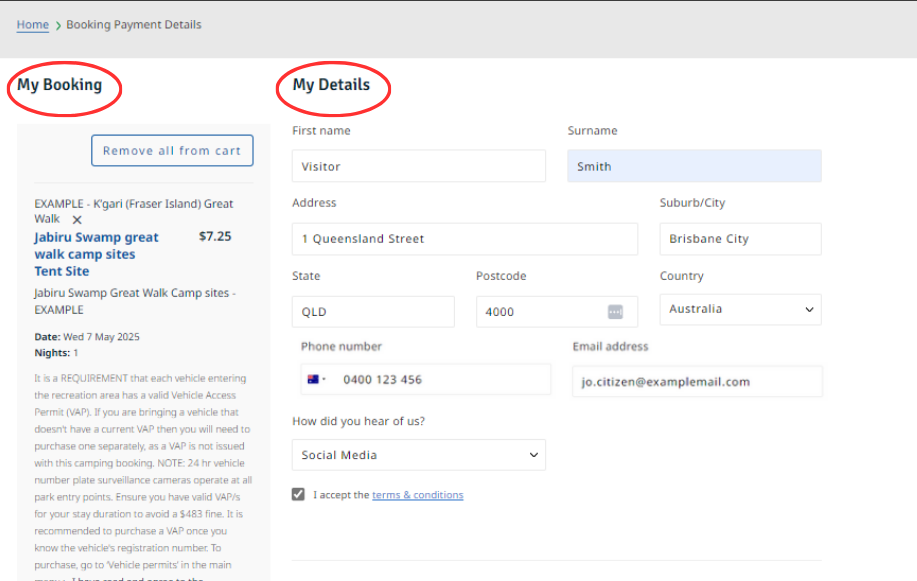
16. Once you have read and agree to the terms & conditions, tick ‘I accept the terms & conditions’.

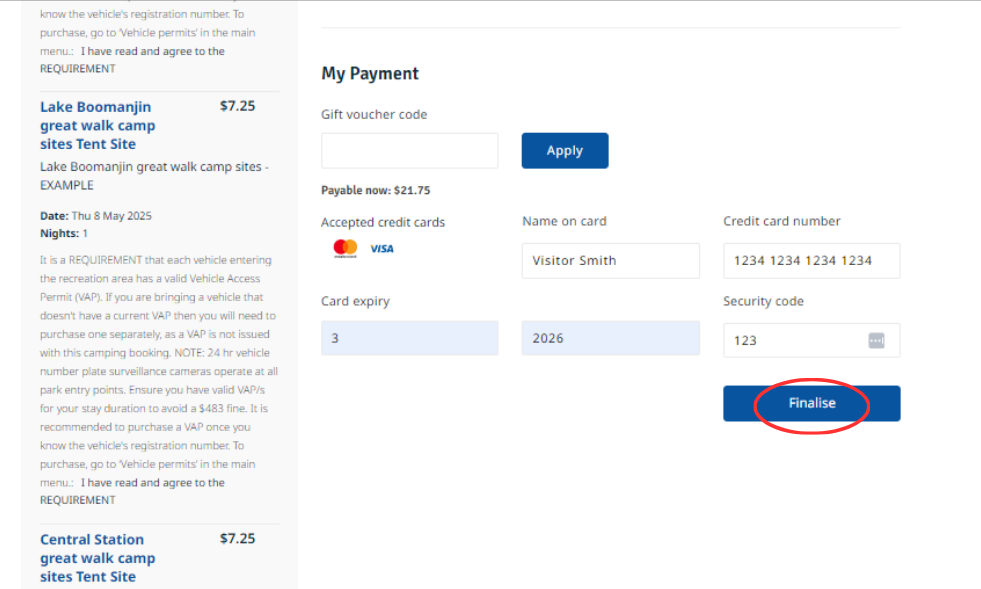
17. Scroll down and enter credit card details into ‘my payment’ fields. Ensure all details are correct and click ‘finalise’.
18. Your booking is complete. You will receive a reservation and payment confirmation email within 2 hours with your itinerary, tax invoice and relevant permits attached. Check your email Junk/Spam folders if the email hasn’t arrived in your inbox.
Note: to modify or cancel your Great Walk booking, please contact us using our online enquiry form, or phoning 13 QGOV (13 74 68).