Purchase a Vehicle Access Permit
Visit qld.gov.au/camping and click ‘vehicle permits’ from the menu bar on the landing page.

1. Click ‘book now’ under the ‘Vehicle Access Permits’ option.

2. Click ‘book now’ against the specific recreation area you wish to book your Vehicle Access Permit (VAP) for.

3. Select your start date using the date picker.

4. You will now see the durations (eg 1 month) and costs for the permits available for the recreation area you have selected.Click ‘book’on the duration relevant to you.
Note: the duration and cost of Vehicle Access Permits varies for each recreation area.

5. If you are not already signed in, click ‘sign in’. On login screen, enter in ‘username’ (email) and ‘password’ and click ‘sign in’. You are now logged in and can continue with your VAP booking.
Note: if you don’t have an account with us and this is your first time booking, click ‘skip and continue’, an account will be automatically created.

6. Click ‘next’.

7. Using the dropdown list, select the State of vehicle registration then enter the registration number for your vehicle and click VALIDATE to validate the registration number:

8. Confirm that the registration number entered is correct with no spaces and special characters by selecting from the dropdown list ‘I Agree’.
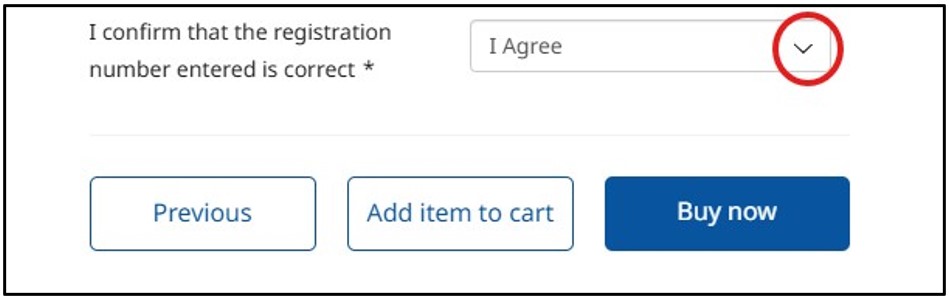
9. If you are purchasing more than 1 VAP, or also purchasing a camping permit, you can ‘add item to cart’ and complete the above steps for your second VAP, or follow these instructions to make a camping booking. If you only need a single VAP, click ‘buy now’.
10. Your booking will be displayed in the left column. If you are logged into your account, the fields under ‘my details’ will have been pre-filled. Check all contact details are correct and update as necessary.
Note: correct contact details are very important so you can be contacted in case of an emergency or unexpected closures.

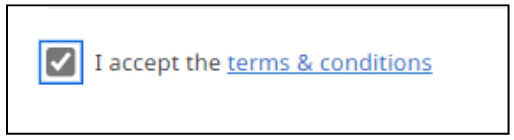
11. Once you have read and agree to the terms & conditions, tick ‘I accept the terms & conditions’.
12. Scroll down and enter credit card details into ‘my payment’ fields. Ensure all details are correct and click ‘finalise’.

13. Booking is complete. You will receive a reservation and payment confirmation email within 2 hours with your itinerary, tax invoice and relevant permits attached. Check your email Junk/Spam folders if the email hasn’t arrived in your inbox.